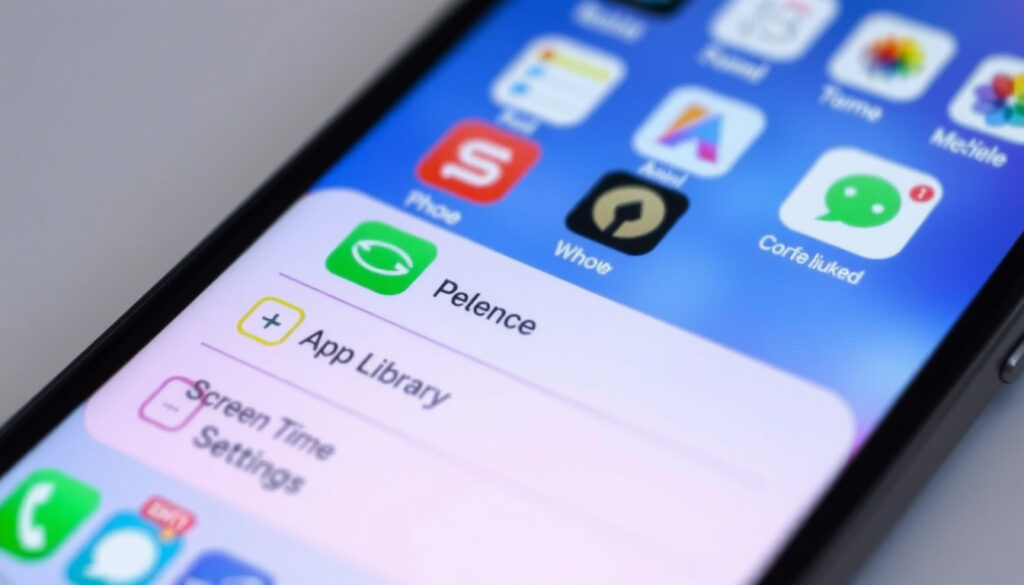
How to Unhide Apps on iPhone – App Library and Screen Time Guide
Hidden apps on an iPhone don’t disappear permanently — they’re stored in specific locations depending on how and when they were hidden. Whether an app ended up in the App Library’s Hidden folder, got restricted through Screen Time, or simply slipped off the Home Screen, retrieving it follows a clear set of steps that vary slightly by iOS version.
Apple introduced more granular hiding controls with iOS 18, adding a dedicated Hidden folder protected by Face ID, Touch ID, or a passcode. Earlier versions relied primarily on Screen Time restrictions and manual App Library management. Knowing which system is responsible for hiding an app is the key to reversing the process efficiently.
These methods apply across iPhone models running iOS 17 and iOS 18, with notes on older behavior where relevant. No third-party tools are required — every step uses built-in iOS features.
How to Find Hidden Apps on iPhone
Swipe to the App Library and scroll to the bottom for the locked Hidden folder (iOS 18).
Swipe down on the Home Screen and type the app name to surface it instantly.
Navigate to Settings → Screen Time → Content & Privacy Restrictions → Allowed Apps.
Ask Siri to open the app by name; Siri may prompt authentication if the app is locked.
- iOS 18 introduced a dedicated Hidden folder at the bottom of the App Library, protected by biometric authentication or a passcode.
- Apps hidden via “Hide and require Face ID” move into this Hidden folder and cannot be seen without unlocking it first.
- Screen Time restrictions operate separately — apps blocked through content restrictions will not appear in the Hidden folder at all.
- Spotlight Search can locate hidden apps by name without requiring navigation through the App Library.
- Without a passcode or biometric authentication, accessing the Hidden folder or changing Screen Time settings is not possible without a full device reset.
- After unhiding, apps may not immediately reappear on the Home Screen and may need to be manually dragged from the App Library.
- The App Store’s Purchased section remains accessible even when an app is hidden, allowing redownloads if needed.
| iOS Version | Primary Hide Location | Unhide Steps | Requirements |
|---|---|---|---|
| iOS 14+ | App Library (removed from Home Screen) | Long-press app in App Library → Add to Home Screen | None — no authentication required |
| iOS 15 / 16 | Screen Time restrictions | Settings → Screen Time → Content & Privacy Restrictions → Allowed Apps → toggle on | Screen Time passcode if set |
| iOS 17 | App Library + Screen Time | App Library search or Screen Time settings path above | Screen Time passcode for restrictions |
| iOS 18 | Hidden folder in App Library | App Library → Hidden folder → authenticate → long-press app → Don’t require Face ID or Add to Home Screen | Face ID, Touch ID, or passcode |
How to Unhide Apps from the Home Screen and App Library
The most direct route to recovering a hidden app on iOS 17 or iOS 18 runs through the App Library. Swiping left past all Home Screen pages lands on the App Library automatically — it sits as the rightmost panel.
Accessing the Hidden Folder on iOS 18
Inside the App Library, scroll all the way to the bottom. A folder labeled Hidden appears there, distinct from the automatically sorted category folders above it. Tapping it triggers an immediate authentication prompt.
Authenticate using Face ID, Touch ID, or the device passcode. Once inside, the folder displays all apps hidden through the “Hide and require Face ID” option. According to multiple documented walkthroughs, this is the standard process for unhiding apps on iOS 18.
Long-pressing any app icon inside the Hidden folder reveals two primary options:
- Don’t require Face ID — removes the authentication lock and moves the app back into the regular App Library.
- Add to Home Screen / Unhide app — restores the app directly to the Home Screen in one step.
If an app doesn’t appear on the Home Screen immediately after unhiding, open the App Library, pull down to reveal the search bar, type the app name, then long-press the result and drag it to the desired Home Screen position.
Showing All Apps on the iPhone Home Screen
Apps removed from the Home Screen but not hidden through Face ID remain in the App Library’s standard categories. To return one to the Home Screen, locate it in the App Library, long-press its icon, and select Add to Home Screen. No authentication is needed for apps that were simply moved rather than hidden with a lock.
A detailed video walkthrough of the long-press method for restoring apps to the Home Screen via App Library confirms these steps work consistently across iPhone 13, 14, and 15 models running iOS 17 and 18.
The “Hide and require Face ID” option is exclusive to iOS 18. On iOS 17, apps hidden by the user are simply removed from the Home Screen and live in the regular App Library without any lock. The Hidden folder does not exist on iOS 17.
How to Remove Screen Time Restrictions on Hidden Apps
Screen Time hides apps through a completely separate mechanism. When content restrictions block an app — due to age ratings, parental controls, or manual limits — the app vanishes from both the Home Screen and the regular App Library. It will not appear in the iOS 18 Hidden folder.
Turning Off App Restrictions Through Screen Time
The path to restore these apps runs through Settings → Screen Time → Content & Privacy Restrictions → Allowed Apps. Each toggle in that list corresponds to a category of built-in apps. Switching a toggle to the on position re-enables that app immediately.
For third-party apps, the relevant section is Settings → Screen Time → App Limits. Deleting a limit for a specific app or category removes the restriction without affecting the app’s data. If a Screen Time passcode was set by another person, that passcode is required to make changes — the device’s own unlock passcode does not work here.
This approach is documented in step-by-step guides covering iOS 17 and iOS 18 Screen Time controls.
What Happens Without the Screen Time Passcode
If the Screen Time passcode is unknown, options are limited. Apple provides a passcode recovery path through an Apple ID linked to the Screen Time account — this option appears on the Screen Time passcode entry screen as “Forgot Passcode?” and requires the associated Apple ID credentials.
If that route is unavailable, the only remaining option is a full device reset via Settings → General → Transfer or Reset iPhone. This erases all data unless a prior iCloud or iTunes backup exists. Discussions on Apple’s community forums confirm no bypass exists that avoids this outcome.
Resetting an iPhone to recover access erases all locally stored data. Restoring from an iCloud backup after the reset recovers most content, but backup completeness depends on when the last backup occurred and which data types were included.
Additional Ways to Locate and Restore Hidden Apps
Beyond the App Library and Screen Time, several secondary methods can surface apps that are difficult to locate. Each serves a different scenario depending on whether the app is hidden, locked, or deleted. For more details on how to connect AirPods to your iPhone, you can refer to $connect AirPods to iPhone.
Using Spotlight Search
Swiping down from the center of any Home Screen opens Spotlight Search. Typing the app’s name surfaces it in results — including apps inside the Hidden folder, provided the device is authenticated. Long-pressing the result and dragging it to the Home Screen repositions it without requiring App Library navigation, as shown in documented iOS 18 demonstrations.
Asking Siri to Open a Hidden App
Siri can open apps by name even when they’re not visible on the Home Screen. Saying “Open [app name]” will launch the app if it exists on the device. If the app is inside the Hidden folder, Siri may prompt Face ID or passcode authentication before opening it. Siri does not move apps between locations — it only launches them.
Recovering Deleted Apps from the App Store
Hidden apps and deleted apps are not the same. A deleted app is not hidden — it has been removed from the device entirely. To reinstall it, open the App Store, tap the profile icon in the top-right corner, select Purchased, then Not on This iPhone. Locating the app there and tapping the cloud download icon reinstalls it. Community reports on Apple’s support discussions confirm this path does not apply to apps that are merely hidden.
Are There Other Hidden Folders on iPhone?
On stock iOS, the only dedicated hidden apps folder is the one introduced in iOS 18 at the bottom of the App Library. There is no system-level vault, second hidden directory, or concealed partition accessible without third-party software. Apps managed through Screen Time simply disappear from the interface rather than moving into a visible folder.
Keeping Apps from Getting Hidden Again
To prevent apps from ending up in the Hidden folder, avoid selecting Hide and require Face ID when long-pressing app icons. That option, introduced in iOS 18, is the trigger that sends apps to the Hidden folder. Disabling Screen Time restrictions entirely in Settings removes that hiding mechanism as well. For households using parental controls, setting a separate Screen Time passcode — distinct from the device unlock passcode — keeps those controls accessible only to the managing adult. Multiple sources covering iOS 18 app hiding behavior recommend this separation as a practical safeguard.
How App Hiding Has Evolved Across iOS Versions
- iOS 14 (2020): Apple introduced the App Library, allowing users to remove apps from the Home Screen without deleting them. Removed apps moved to the App Library’s automatic categories — no authentication required to access them.
- iOS 14–15: Screen Time gained more refined app limit controls, allowing specific apps to be restricted by time or blocked entirely. Restricted apps disappeared from the Home Screen and App Library.
- iOS 16: Screen Time controls expanded further with enhanced content and privacy restriction categories. The mechanism for hiding apps through restrictions remained unchanged.
- iOS 17: App Library and Screen Time continued as the primary methods. No dedicated hidden folder existed; apps were either in the App Library or restricted via Screen Time.
- iOS 18 (2024): Apple introduced the “Hide and require Face ID” long-press option, creating a dedicated Hidden folder at the bottom of the App Library. This folder requires biometric or passcode authentication to open, adding a privacy layer not present in earlier versions.
What Is Confirmed and What Remains Variable
| Established Information | Information That Varies or Remains Unclear |
|---|---|
| The App Library is always accessible by swiping right past all Home Screen pages on iOS 14 and later. | The exact behavior of some third-party app hiders or MDM (Mobile Device Management) profiles may differ from stock iOS behavior. |
| The Hidden folder in iOS 18 requires Face ID, Touch ID, or a passcode — it cannot be opened without authentication. | Whether Siri consistently prompts authentication before opening a hidden app may depend on device settings and iOS build version. |
| Screen Time restrictions and the iOS 18 Hidden folder are separate systems; apps blocked by Screen Time do not appear in the Hidden folder. | Edge cases where the long-press menu inside the Hidden folder shows no “unhide” option have been reported — dragging the app directly is the documented workaround. |
| Resetting the device is the only confirmed path when both the device passcode and Screen Time passcode are unknown. | Timing and completeness of iCloud backups ahead of a reset vary by user and cannot be guaranteed. |
Why Apps Get Hidden and What Apple’s Design Intends
Apple’s approach to app visibility has always balanced privacy with accessibility. The App Library, introduced in iOS 14, reflected a shift toward letting users keep apps installed without cluttering the Home Screen — a response to the growing number of apps the average user maintains on a device.
Screen Time controls were designed primarily for parental oversight, allowing guardians to restrict access to content or specific apps on family-managed devices. Over time, these tools found broader use among individuals managing their own digital habits, including self-imposed app limits.
The iOS 18 Hidden folder represents a deliberate privacy feature rather than a parental control. Its placement behind biometric authentication mirrors how Apple handles sensitive data in other parts of the system — treating personal app choices as private information worth protecting. The feature is distinct from device management or enterprise restrictions, which operate through separate configuration profiles.
Understanding this layered structure — Home Screen visibility, App Library storage, Screen Time restrictions, and the iOS 18 Hidden folder — clarifies why a single search query often doesn’t surface a hidden app. Each layer has its own logic and its own reversal method. Curious about how app icons and visual identity work more broadly? The concept behind What Is a Favicon offers relevant context on how apps present themselves visually across different platforms.
Sources Behind the Steps Documented Here
The following processes are drawn from multiple independent video walkthroughs and Apple community discussions, all focused on iOS 17 and iOS 18 behavior. No single official Apple support document covering the Hidden folder’s full workflow was available in the reviewed sources, though the steps across sources are consistent.
“Long-press the app icon inside the Hidden folder, then choose Don’t require Face ID — the app moves back into the regular App Library immediately.”
Documented in iOS 18 walkthrough, YouTube demonstration
“If no ‘unhide’ option appears on the long-press menu, drag the app directly out of the Hidden folder onto the Home Screen or into the App Library.”
Apple Community Forums, user report on Hidden folder behavior
“Apps may remain accessible via the App Store Purchased section even when hidden from the Home Screen, allowing redownloads if necessary.”
Apple Community Forums, discussion on hidden vs. deleted apps
The Quickest Path Back to a Hidden App
For most users on iOS 18, the Hidden folder in the App Library is the starting point — authenticate, long-press the app, and choose to restore it to the Home Screen or the regular App Library. For Screen Time restrictions, the Settings path under Content & Privacy Restrictions handles the reversal. Spotlight Search and Siri provide faster shortcuts when the app’s name is known. If a passcode is completely inaccessible, a device reset with prior iCloud backup is the only remaining option. For more on how Apple structures its software and app ecosystems across generations, the Pokemon Games in Order guide illustrates how version sequencing affects features across platform updates — a pattern that mirrors iOS’s own generational feature rollouts.
Frequently Asked Questions
How do you unhide recently deleted apps on iPhone?
Deleted apps are not hidden — they’ve been removed from the device. To reinstall them, open the App Store, tap the profile icon, go to Purchased → Not on This iPhone, find the app, and tap the cloud download icon. This is separate from the Hidden folder process.
Can you unhide apps on iPhone without a passcode?
Without a passcode, Face ID, or Touch ID, the iOS 18 Hidden folder cannot be opened. Screen Time settings also require a Screen Time passcode if one was set. The only path forward without any credentials is a full device reset, which erases data unless an iCloud backup exists.
How do you stop apps from getting hidden on iPhone?
Avoid selecting “Hide and require Face ID” when long-pressing app icons on iOS 18. Turning off Screen Time Content & Privacy Restrictions in Settings also prevents app hiding via that system. Using a separate Screen Time passcode helps prevent unintended changes to restrictions.
Where exactly is the Hidden folder on iPhone?
The Hidden folder is located at the very bottom of the App Library on iOS 18. Swipe left past all Home Screen pages to reach the App Library, then scroll down past the category folders. The Hidden folder appears at the bottom and requires authentication to open.
Do hidden apps show up in Spotlight Search?
Yes — typing the app name in Spotlight Search can surface apps inside the Hidden folder. The device may prompt Face ID or passcode authentication before displaying or opening the app. The result can then be long-pressed and dragged to the Home Screen.
What is the difference between hiding an app and deleting it?
Hiding an app keeps it installed on the device but removes it from normal view. Deleting removes it entirely, including its data. Hidden apps can be restored through the App Library or Screen Time settings; deleted apps must be redownloaded from the App Store.
Can Siri open apps that are inside the Hidden folder?
Siri can attempt to open a hidden app by name and may prompt biometric or passcode authentication before launching it. Siri does not move apps out of the Hidden folder — it only opens them directly.
More related posts
 Wordle of the Day #1772: Hints & Answer Guide
 Who Is Running for California Governor in 2026? Candidates & Polls
 What Is a Period? Menstrual Cycle Basics Explained
 Bulls vs Pacers Match Player Stats: Key Performers
 Fallout Season 2 Release Date: Full Episode Schedule 2025
 Sermorelin Before and After – Realistic Results and Timelines
 Who Wrote Project 2025 – Heritage Foundation and Key Authors
 Dishwasher Repair Near Me: Repair or Replace? (2025 Cost Guide)